
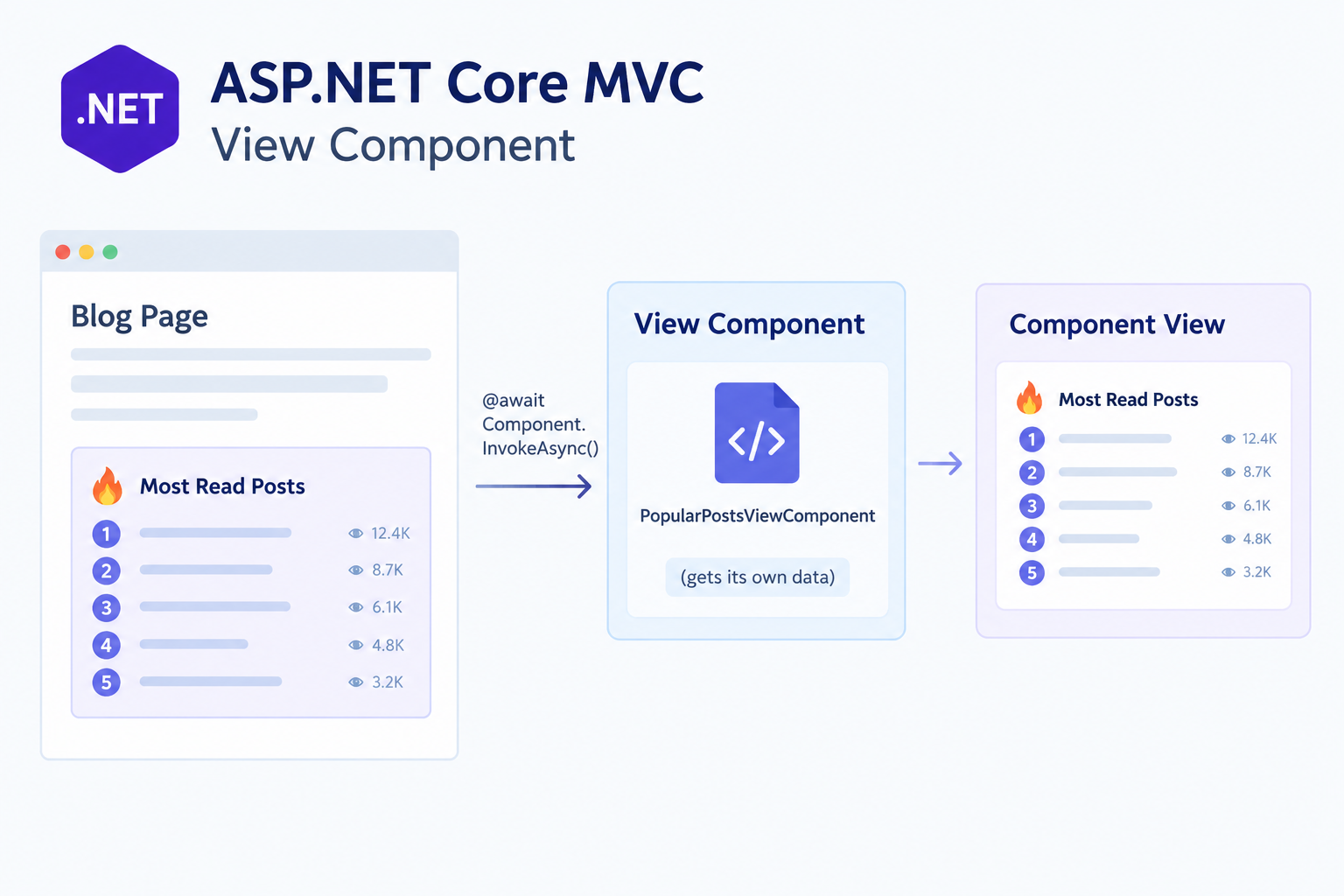
I wanted to add a "Most Read Posts" section to my blog. It needed to be reusable across different pages and, more importantly, it needed to fetch its own data.
That's exactly where one of ASP.NET Core MVC's most useful features comes in: the View Component.
What Is a View Component?
A View Component is a reusable UI component with its own C# logic and its own view.
It is especially useful when a UI section needs to fetch or prepare its own data instead of relying entirely on the parent view.
One of the most common questions is how a View Component differs from a Partial View.
Partial View vs. View Component
Partial View
- A reusable HTML/UI fragment.
- Usually receives data prepared by the parent view or controller.
- Does not have its own component class.
- Best suited for simple, reusable UI sections.
View Component
- A reusable UI component with its own C# class.
- Can fetch or prepare its own data.
- Has its own view and execution logic.
- Best suited for UI sections that have their own data requirements.
In short:
> If the parent view prepares the data and markup, a Partial View is usually a good fit. If the UI component needs to fetch or prepare its own data, a View Component is often a better choice.
---
1. Create the Component Class
First, add a ViewComponents folder at the project root and create a class called PopularPostsViewComponent:
using Microsoft.AspNetCore.Mvc;
using Microsoft.EntityFrameworkCore;
using MyBlog.Models;

namespace MyBlog.ViewComponents
{
    public class PopularPostsViewComponent : ViewComponent
    {
        private readonly BlogContext _context;

        public PopularPostsViewComponent(BlogContext context)
        {
            _context = context;
        }

        public async Task<IViewComponentResult> InvokeAsync(int count = 5)
        {
            var posts = await _context.Blog
                .Where(x => x.IsPublish)
                .OrderByDescending(x => x.ViewCount)
                .Take(count)
                .ToListAsync();

            return View(posts);
        }
    }
}
There are three important things to notice here:
- It derives from
ViewComponent. This tells ASP.NET Core MVC that the class is a View Component. - Dependencies are injected through the constructor.
BlogContextis provided through dependency injection, allowing the component to access the database. InvokeAsyncis called when the component is rendered. It can also accept parameters such ascount, allowing the same component to be reused with different settings.
---
2. Create the View
View Components follow a specific folder convention.
For MVC to find the view automatically, create it at:
Views/Shared/Components/PopularPosts/Default.cshtmlThe component name is based on the class name without the ViewComponent suffix.
So:
PopularPostsViewComponentbecomes:
PopularPostsNow we can create the view:
@model List<MyBlog.Models.Blog>

@if (Model != null && Model.Any())
{
    <section class="popular-posts">
        <h3>🔥 Most Read Posts</h3>

        <ol class="popular-posts-list">
            @{ var rank = 1; }

            @foreach (var post in Model)
            {
                <li class="popular-posts-item">
                    <span class="popular-posts-rank">@rank</span>

                    <a asp-controller="Blog"
                       asp-action="Details"
                       asp-route-id="@post.Id">
                        @post.Title
                    </a>

                    <span class="popular-posts-views">
                        👁 @post.ViewCount
                    </span>
                </li>

                rank++;
            }
        </ol>
    </section>
}
Now the component has its own C# logic and its own Razor view.
---
3. Use the Component
We can now add the component to any Razor view with a single line:
@await Component.InvokeAsync("PopularPosts", new { count = 5 })There is also a Tag Helper syntax:
<vc:popular-posts count="5"></vc:popular-posts>Both approaches execute the same View Component.
The component fetches the required data and renders its own view wherever it is used.
This means we don't have to repeat the database query or the HTML markup on every page.
---
4. Styling and Dark Mode
We can style the component using the same CSS variables used throughout the site.
For example:
.popular-posts {
    background: var(--card);
    border: 1px solid var(--border);
    border-radius: 18px;
    box-shadow: 0 12px 34px -22px rgba(0, 0, 0, .35);
}

.popular-posts-title {
    color: var(--text);
}

.popular-posts-views {
    color: var(--muted);
}
Variables such as --card, --text, and --border already have different values for the dark theme, so the component automatically follows the site's theme without requiring separate dark-mode styles.
---
What I Learned
- Reusability: The same component can be used on the homepage, a blog post page, or a sidebar without duplicating the data-fetching code.
- Separation of concerns: The controller handles the page flow, while the component is responsible for preparing the data required by its UI.
- Maintainability: If the way we calculate or retrieve popular posts changes, we only need to update the component.
- Performance: The query selects only published posts and uses
Take(count)to limit the number of records returned. For frequently used components, caching could also be added to reduce repeated database queries.
Final Thoughts
View Components are a simple but powerful way to keep reusable UI sections organized in an ASP.NET Core MVC application.
In this example, instead of putting the "Most Read Posts" query into every page, I created one PopularPostsViewComponent and reused it wherever I needed it.
The result is cleaner views, less duplicated code, and a component that has a clear responsibility.
Next, I'll probably use the same approach for "Recent Comments" or "Categories".
Comments
Please log in to leave a comment.
No comments yet. Be the first!